One list, split by shop.
Every item belongs to a shop. Tap a chip to see just that shop; press and hold to drag them into the order you walk them.
Closing times
Type a shop’s hours once. Its chip turns amber 90 minutes before closing and red inside 30.
Aisles
Tap + aisle on a category and type what the sign says. That category sorts there for everyone.
Measures that mean something
Two eggs, two boxes of eggs and two pounds of eggs are three different errands. Pick item, box, tray or lb, and the row says which.
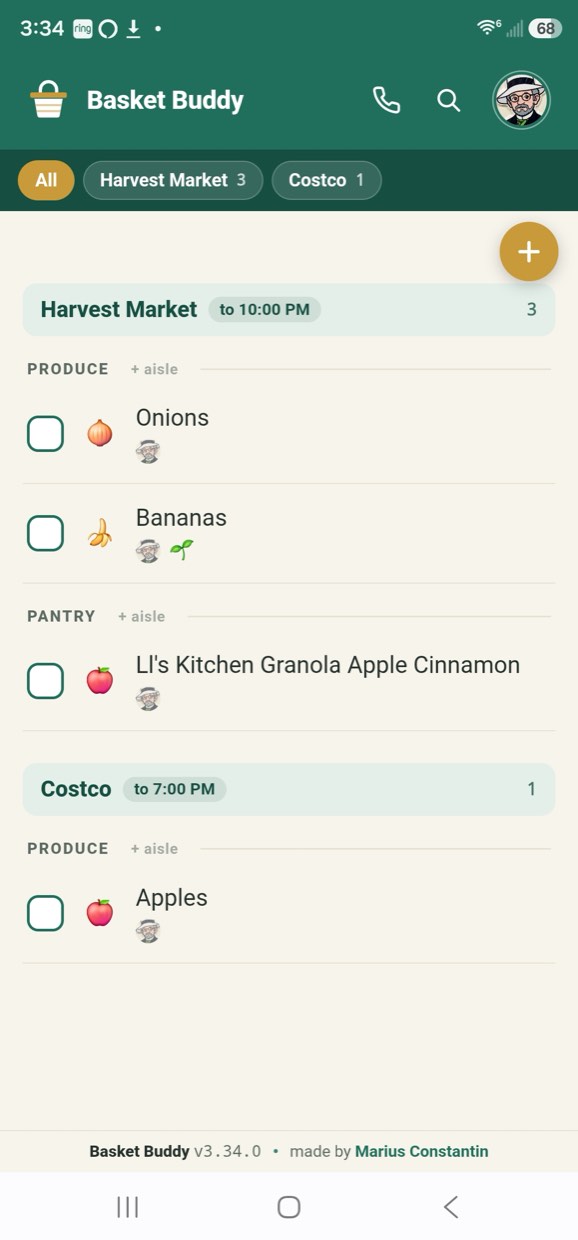
Ticking the first item starts a trip.
Nothing to switch on. A short message says a trip has started, with Stop beside it in case you were only tidying up.
The list refreshes itself
During a trip it updates on its own, so anything added at home appears without you pulling the screen down.
Your picture is the sign
A gold ring circles it while a trip is on. Tapping it once ends the trip; tapping again opens the menu as usual.
It ends on its own
Ten minutes after your last tick. Tick again and a new trip starts.
Stop means stop
The next tick asks again rather than assuming you changed your mind.
One list, everyone on it.
Everyone in a household sees the same list as it changes.
Who wants it
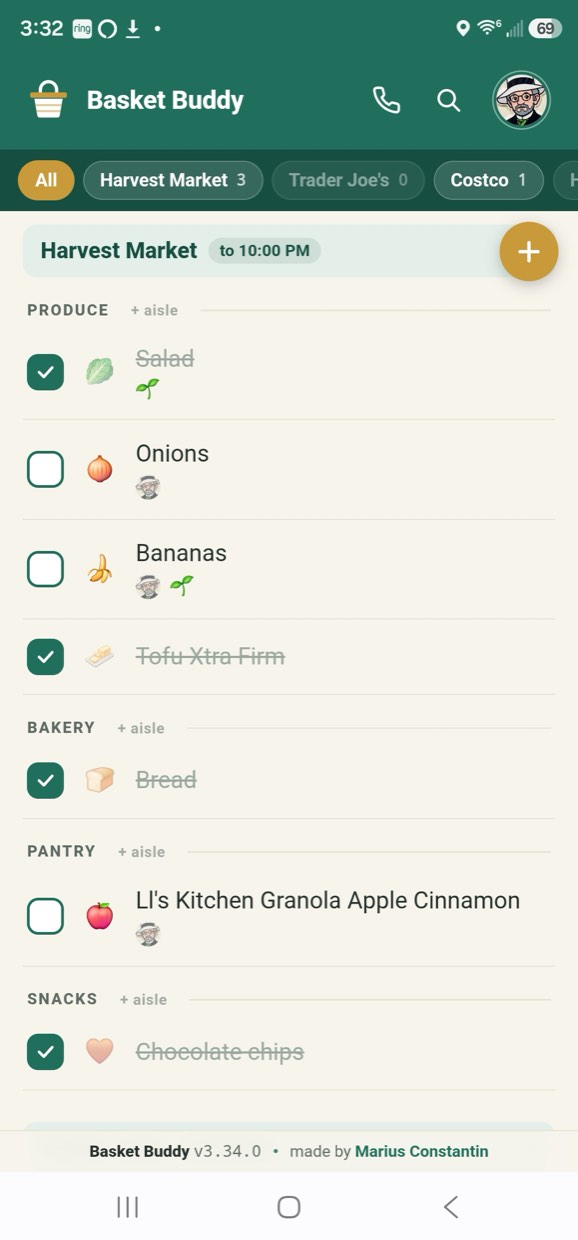
The face on a row is whoever put it there last — by adding it, or by unticking it. Hover to see which.
Ring whoever knows
The list says “yoghurt” and there are eleven. Call for help in the menu dials whoever can settle it. Give the number a name when you set it and the row reads Call Carmen rather than a string of digits nobody reads. It is hidden on computers, which cannot place a call — the number and the name are still editable there, under your name.
Nothing gets bought twice
Add something already listed and it comes back as it was, rather than becoming a second row.
Delete is never final
Swipe a row away and Undo sits in the message. It returns whole.
Add someone to the list
- Tap your picture, then Invite someone.
- Type their email address.
- They get a link. Opening it puts them on the list.
Owners only. The link lasts 14 days, and lands on your clipboard if it cannot be emailed. Invitations still waiting show as a number beside Households.
A household per list
- Separate lists, separate people.
- Switch between them under Households.
- Leaving one does not touch your account.
Useful for a second home, or a flat kept apart from family shopping.
Getting back to something on a long list.
Items are unticked and reticked rather than deleted, so the list keeps everything you have ever bought.
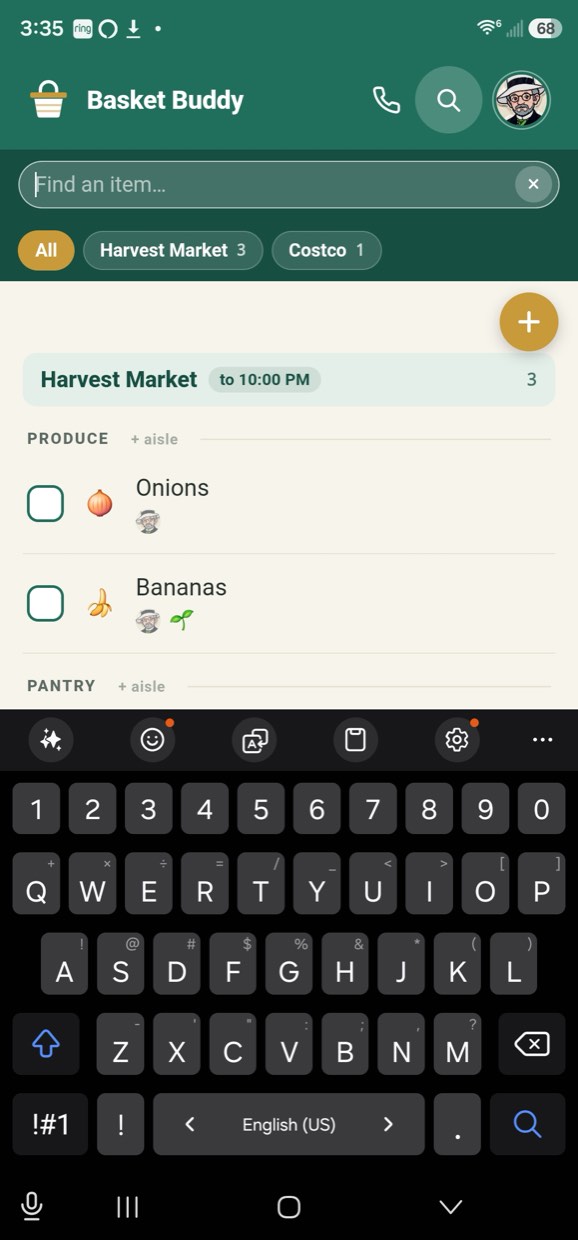
Searches the whole row
Name, notes, shop and category — not just the start of the name.
Hide what is bought
The switch beside the search icon drops ticked rows out of sight. It shows a ticked box while they are visible and an empty gold one while they are not.
Search still reaches them
Ticked rows come back while you are searching, since what you are hunting for is usually something you have had before.
Tap a row to open it.
Categories fill themselves in
Leave it blank and the app files the item for you. Correct it once and it remembers.
Organic
Mark an item organic and a sprout appears on the row.
A photo beats a description
Add one from the camera or your files, for the things you would otherwise have to describe.
No signal, no problem
The list works offline. Changes queue up and sync when the connection returns.
Install it and it stops behaving like a website.
No store, nothing to update by hand. Installed, it gets its own window and icon, and still opens your list with no signal.
Chrome or Edge, on a computer
- Open basket.marius-constantin.tech.
- Click the install icon at the end of the address bar.
- Confirm Install.
No icon? Chrome: ⋮ → Cast, save and share → Install page as app. Edge: ⋯ → Apps → Install this site as an app.
Chrome or Edge, on the phone
- Open the site, tap the ⋮ menu.
- Tap Install app, or Add to Home screen.
- Confirm.
Chrome usually offers this by itself after a visit or two.
Safari
- Open the site in Safari.
- Tap Share, then Add to Home Screen.
- Tap Add.
Use Safari. Other browsers on iOS cannot always manage it.
Safari on a Mac, and Firefox
- Safari 17 and later: File → Add to Dock.
- Firefox runs it in a tab; it cannot install web apps.
Nothing breaks in a tab. You lose the separate window and the icon.
Chrome and Edge are the ones to reach for — they give the app a real window and a real icon. The app also offers to install itself from the menu under your picture, and once installed it updates quietly: close it and open it again to pick up a new version.